
[email protected]
 English
 EN
EN FRENCH
 繁体中文
繁体中文Log in
Proxy Solutions
Gather data at scale
Web Scraping Proxies Free Trial
Gather accurate data worldwide without blocks or interruptions.
Learn more >
Top-tier Residential Proxies
Utilize our residential proxies to gather all required data without encountering Captchas or blocks

Get Proxy




Configuring Yunlogin with Swiftproxy

2024-07-31 17:48:18
Configuring Incogniton Yunlogin Browser with Swiftproxy Residential Proxy
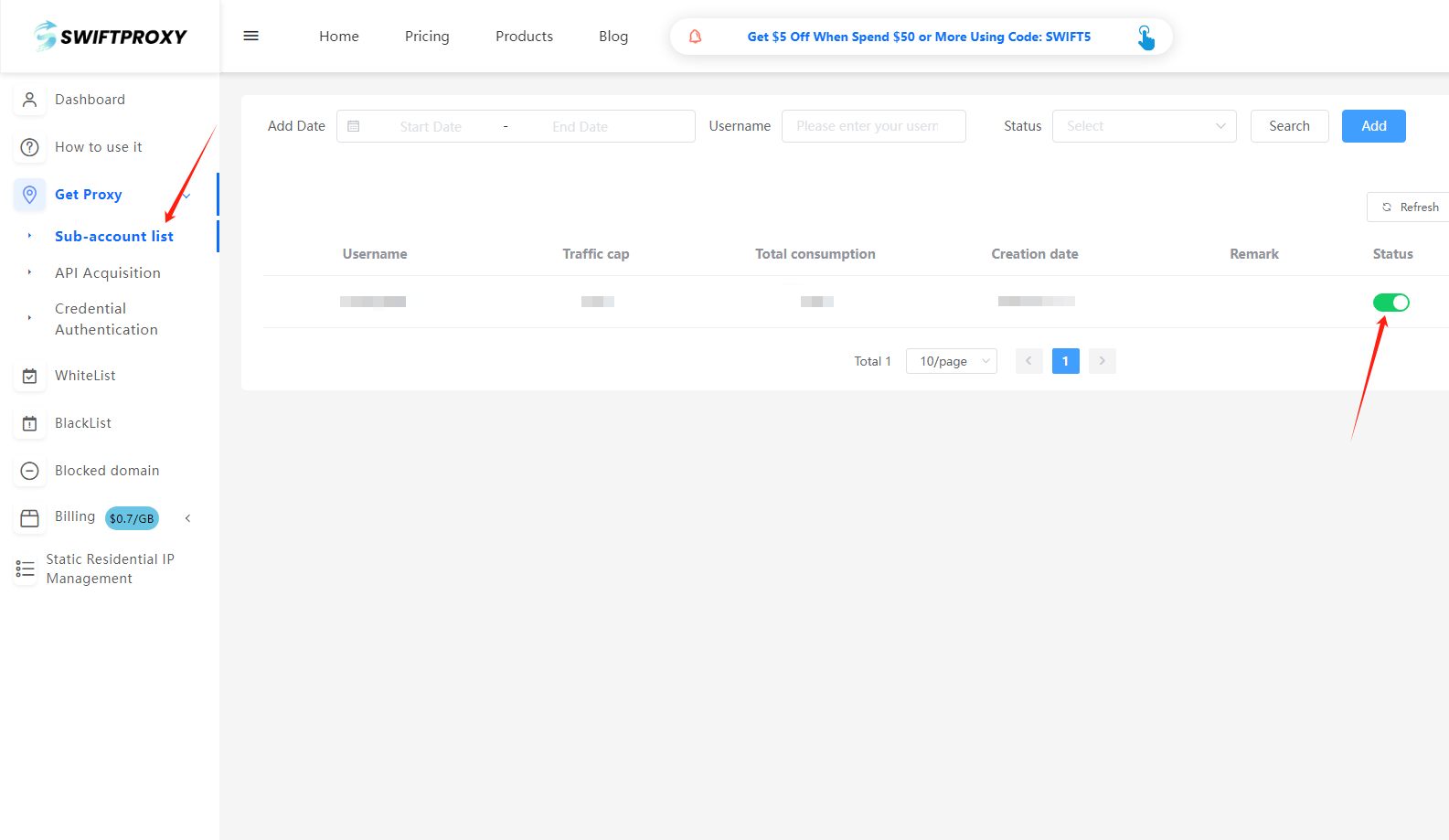
1. Create a Sub-Account
- After logging in, create a sub-account via your personal account dashboard.
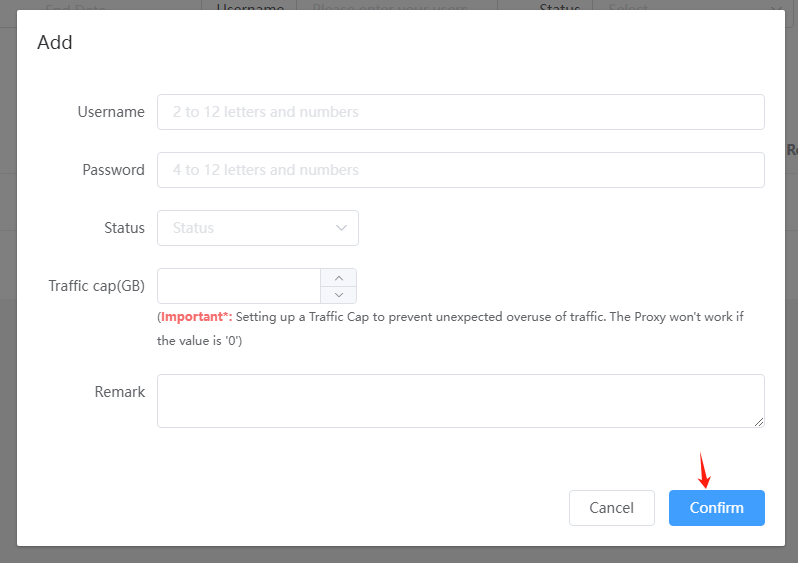
- Ensure to change the sub-account status from "Pause" to "Enable" and set up a data usage cap (Traffic Cap) to prevent unexpected overuse.
- Hit "Confirm" to finish creating the sub-account.
2. Access "Get Proxy" and Configure Settings
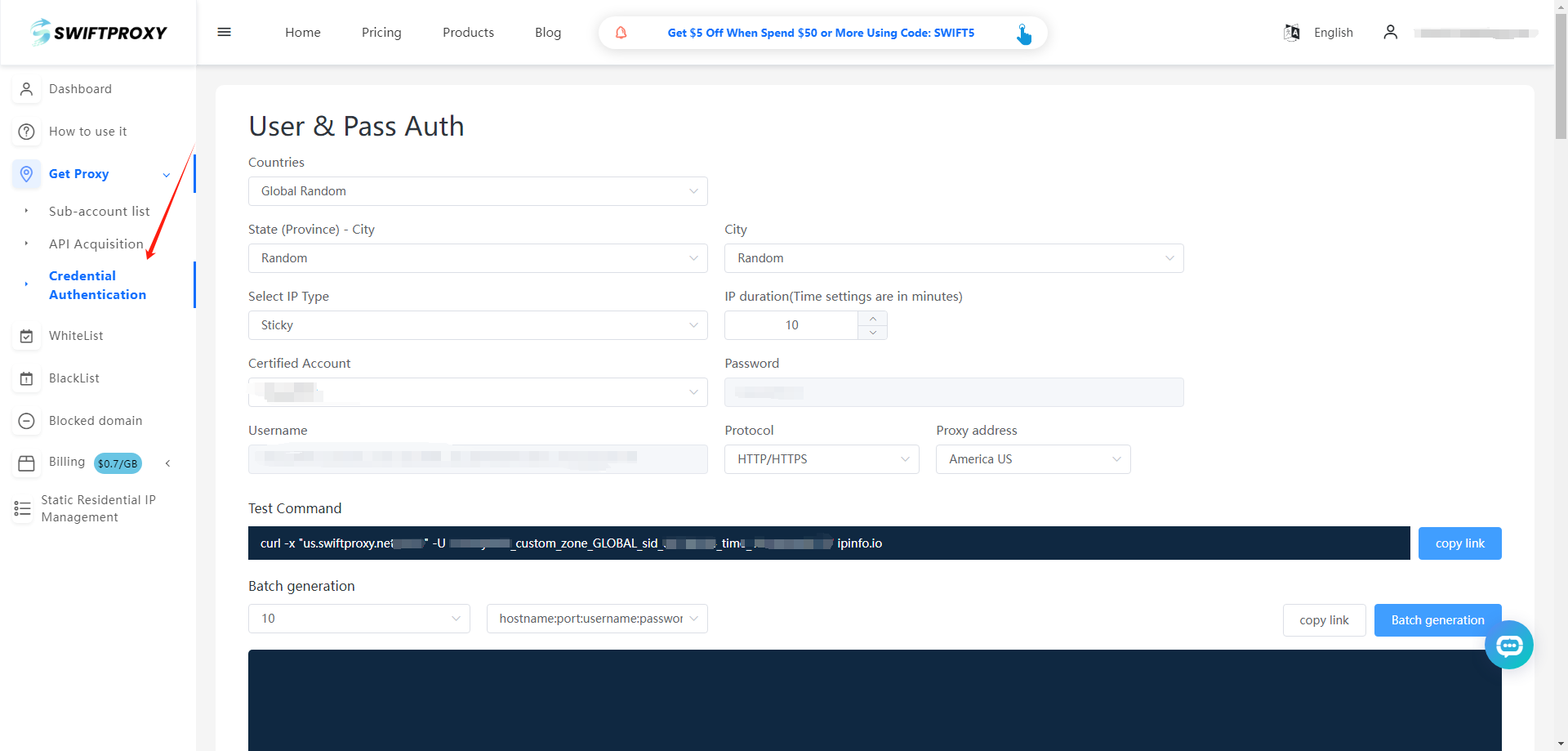
- Head to the "Get Proxy" section and select "Credential Authentication".
- Configure your residential proxy based on your needs. For example, select "Random in North America".
Note: Swiftproxy offers two IP types:
- Sticky Session: For sticky IP, select the IP stabilization time (e.g., if set to 3 minutes, the IP will change every 3 minutes).
- Rotation Mode: IPs will change every time it is requested.
3. Finish Proxy Extraction
- Tap "Copy link" or "Batch Generation" to finish the proxy extraction.
4. Setting on Yunlogin Browser
- Download Yunlogin Browser from the official website.
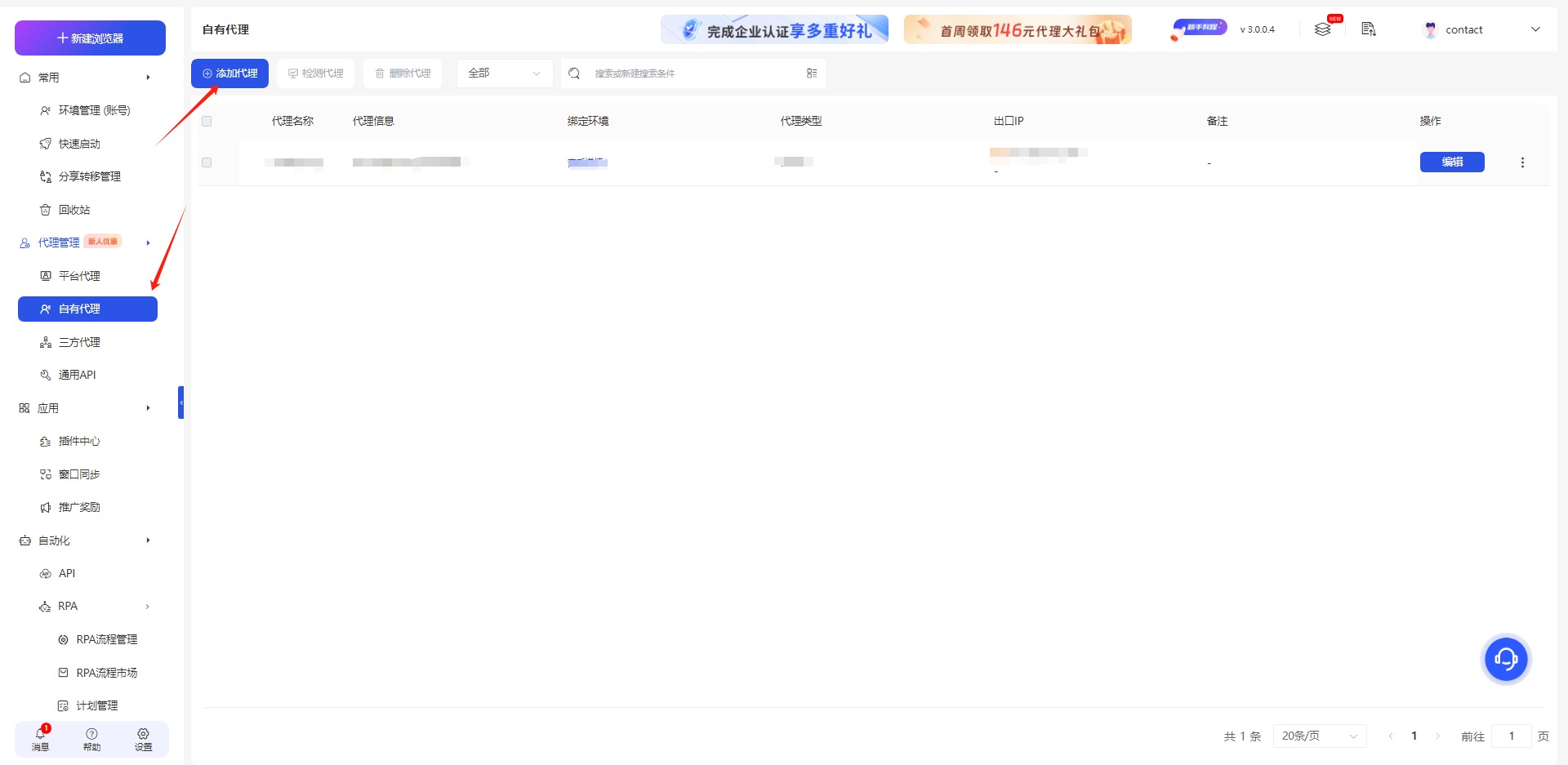
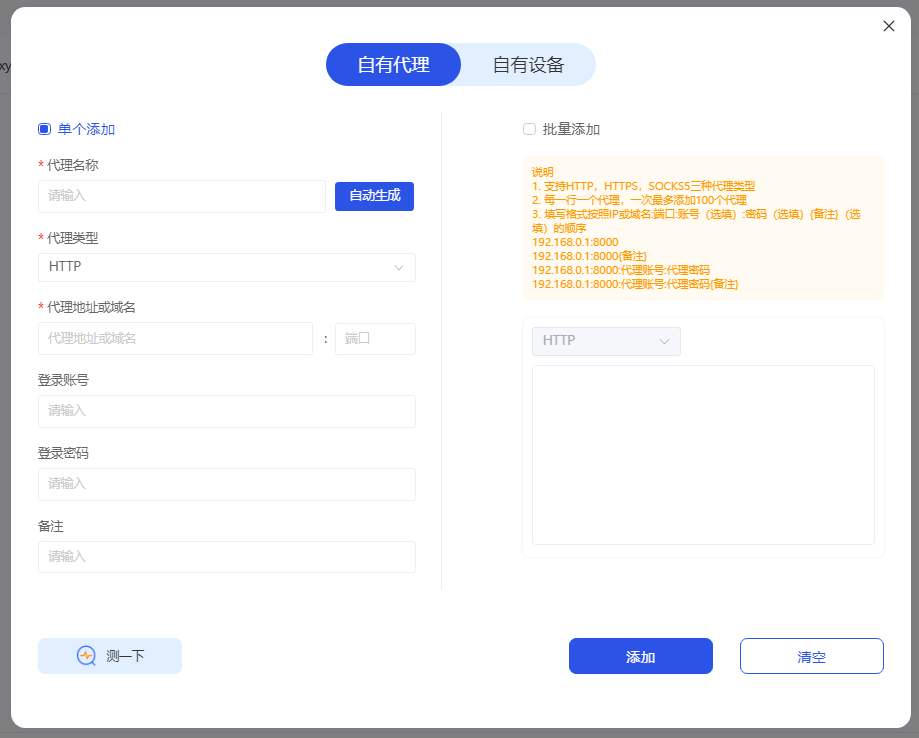
- Launch the app, hit"Own Proxy"on the left side, and hit "Add Proxy", hit "Confirm"to finish adding.
5. Completing the setup
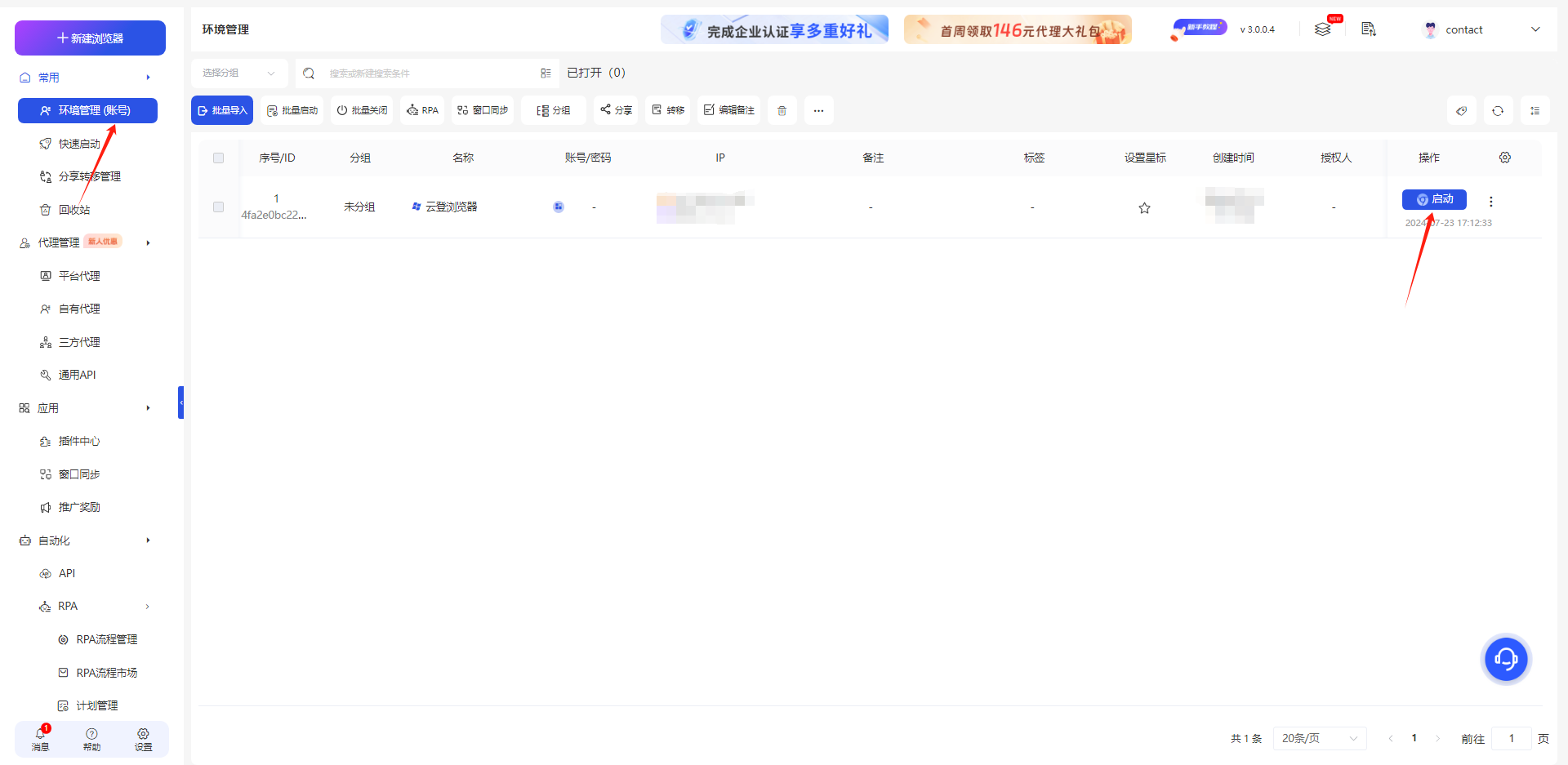
- Hit"Environment Management (Account)"and hit"Enable"to complete the settings.
Configuring Incogniton Yunlogin Browser with Swiftproxy Static Proxy
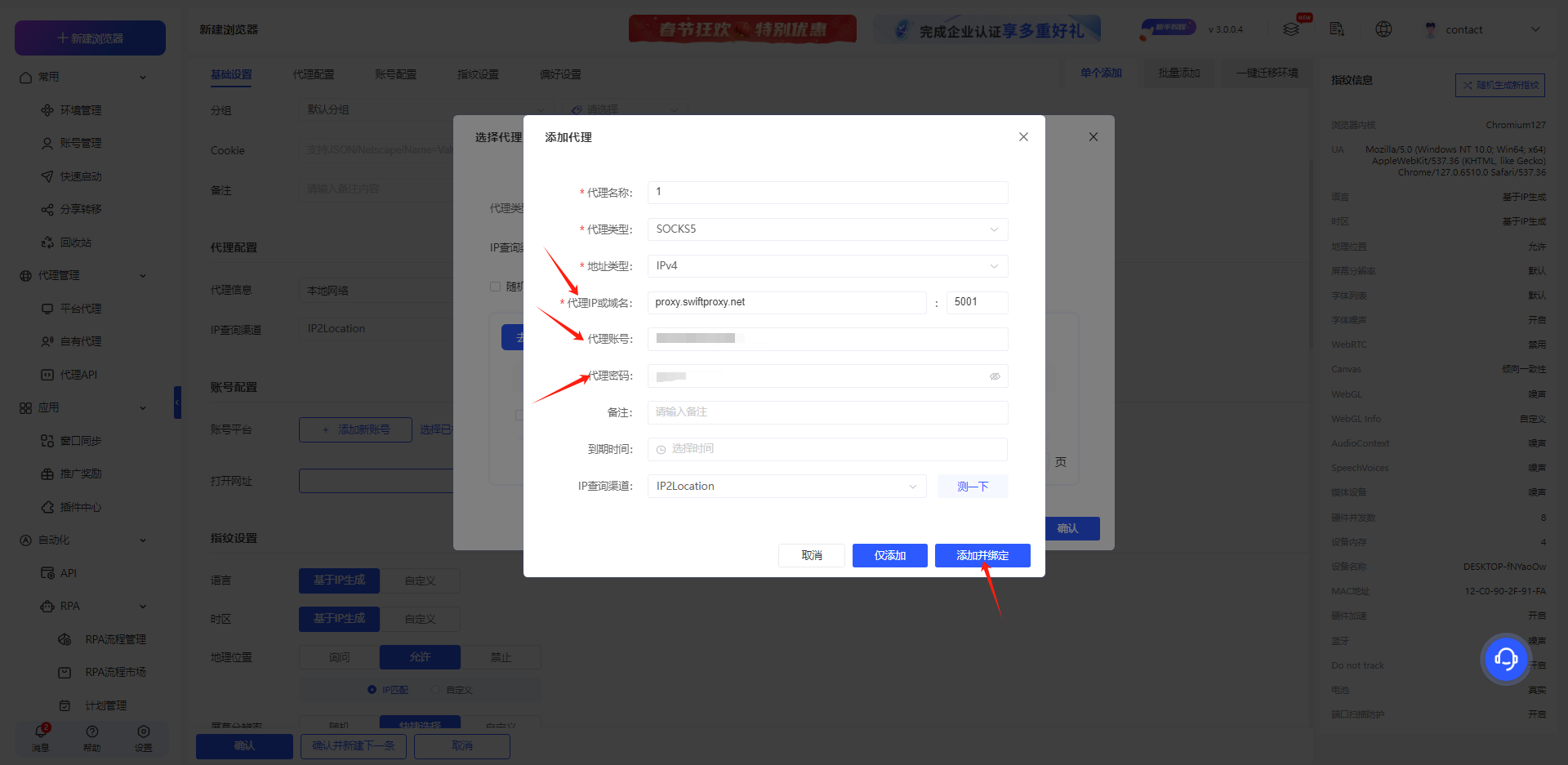
1. Visit the Swiftproxy dashboard and copy Username, Password, Hostname and Port.
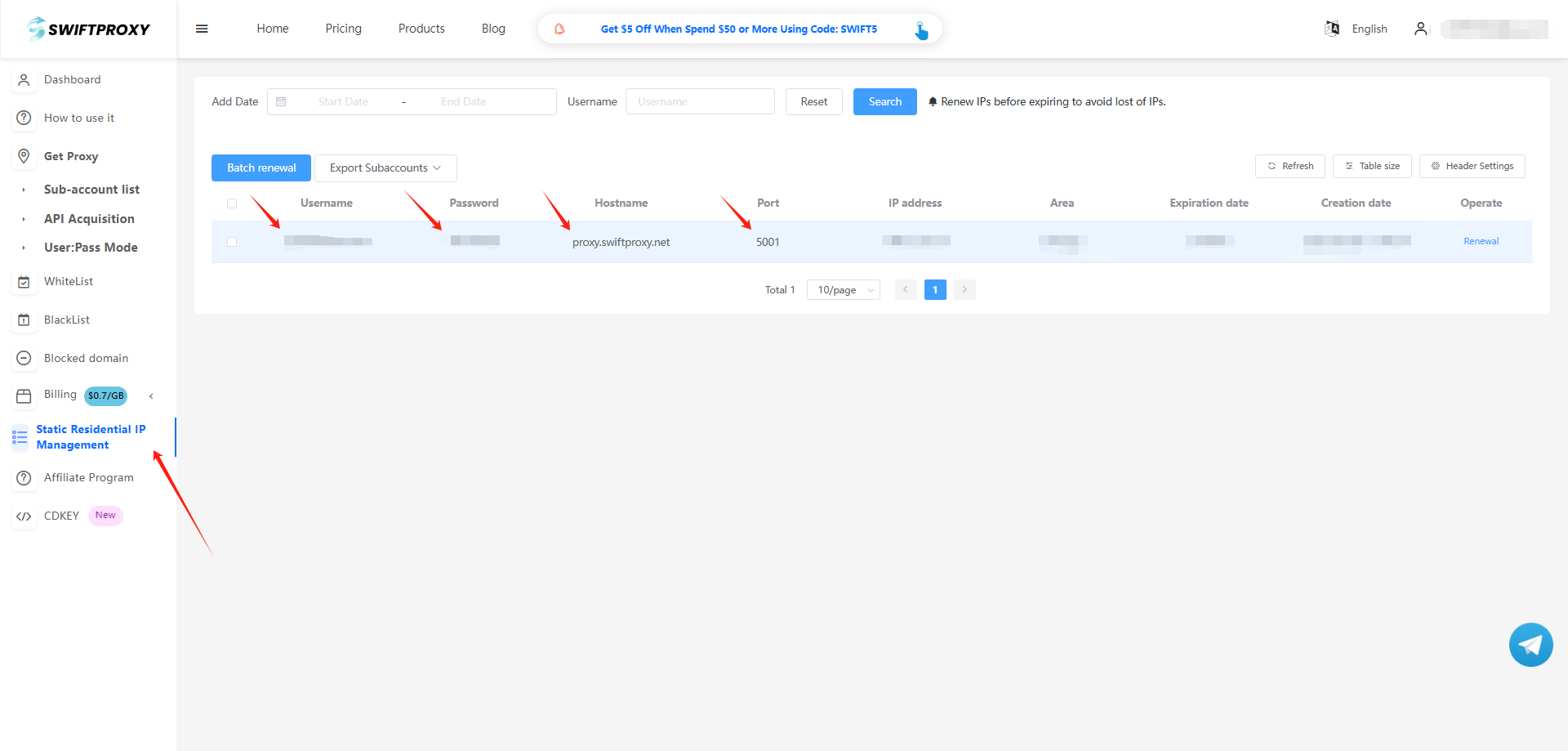
2. Back to Proxy configuration in Yunlogin, paste the proxy information we copied from Swiftproxy dashboard, click "Save" in the end.
About the author
The content provided on the Swiftproxy Blog is intended solely for informational purposes and is presented without warranty of any kind. Swiftproxy does not guarantee the accuracy, completeness, or legal compliance of the information contained herein, nor does it assume any responsibility for content on thirdparty websites referenced in the blog. Prior to engaging in any web scraping or automated data collection activities, readers are strongly advised to consult with qualified legal counsel and to review the applicable terms of service of the target website. In certain cases, explicit authorization or a scraping permit may be required.
IN THIS ARTICLE
 Top-tier residential proxy solutions
Access 90M+ residential IPs with high reliability and quick response times.
Start free trial
Frequently Asked Questions
 {{item.title}}
{{item.content}}
Show more
Show less
Related articles

 2670
2670


Contact us with email
Tips
- Please provide your account number, or email address.
- Provide videos or screenshots, and simply describe the problems you are facing.
- Our staff will reply to your message within 24 hours.