







Telegram Expert and Proxies: When to Keep an IP, When to Change It, and How Not to Break Automation
Learn how to choose the right proxy strategy for Telegram automation. This article explains the differences between static ISP proxies, sticky sessions, and rotating residential proxies, why changing IPs does not solve account restrictions, and how to manage proxy stability with Telegram Expert and SwiftProxy.

Proxies are often seen as a way to make working with Telegram safer. This leads to a simple assumption: the more IPs you have in your pool and the more often they change, the fewer problems you will have with your accounts.
In practice, it does not work that way. A proxy is responsible for the network connection. Account restrictions, the history of the phone number, user activity patterns, and the automation itself all exist at different layers. That is why changing the IP will not remove a spam restriction, while constant rotation can create additional problems when an account needs a stable session. When you work with a large number of accounts, it is more important to choose a network strategy that fits the specific task and configure the software so it can monitor proxy health. Telegram Expert includes dedicated tools for checking, assigning, and switching proxies.

What a Proxy Actually Does in Telegram
Telegram officially supports proxy connections. Supported options include SOCKS5 and MTProto.
A proxy changes the network route used for the connection. This is useful when you need to separate account connections, use a specific IP address, or run your setup through dedicated proxy infrastructure. But a proxy is not a “remove restriction” button.
If an account was restricted because users reported its messages, changing the IP does not remove that restriction by itself. Telegram links spam restrictions to user reports and a subsequent review process. You can check restrictions and submit an appeal through @SpamBot.
This is why one of the most common diagnostic mistakes looks like this: an account stops sending messages, the operator changes the proxy, and then waits for the problem to disappear. If the issue is at the account level, the network layer has nothing to do with it.
Why Changing the IP Does Not Solve Every Telegram Problem
Telegram has several different account states that can look like connectivity problems from the outside.
An account may be restricted from sending messages to people it does not know. A new account can also be restricted because of the previous owner’s phone-number history or because of the characteristics of certain virtual and VoIP numbers. Telegram also uses a Frozen Account state, in which the user can read chats but cannot send messages or publish content until the issue is resolved.
In these cases, a new IP does not change the account’s status.
The network can also cause problems, but the symptoms are different. Telegram may take a long time to connect, a session may repeatedly lose its connection, tasks may get stuck waiting for a response, and the automation may keep retrying failed requests.
When something goes wrong, it is better to check several layers:
- Account. Are there any restrictions, and what is the current status?
- Phone number. Could the restriction be tied to the number itself or its previous history?
- Proxy. Is the endpoint reachable, how quickly does it respond, and does the connection remain stable?
- Automation. What workflow is running, how many accounts are active at the same time, and what happens when a connection error occurs?
In this system, the IP address is only one of many signals.
Stable IP or Rotation: Which Should You Choose?
There is no universal answer. A good starting point is to separate two different operating models.
In the first model, you have an authenticated account running a longer task. The account starts a workflow, performs several actions, receives responses, and continues working within the same session. This is a continuous, session-based process. In the second model, individual requests or operations are relatively independent of one another. For this type of work, IP rotation is a more natural fit. That is why proxies for Telegram accounts should not be chosen according to the rule “the more rotation, the better.”
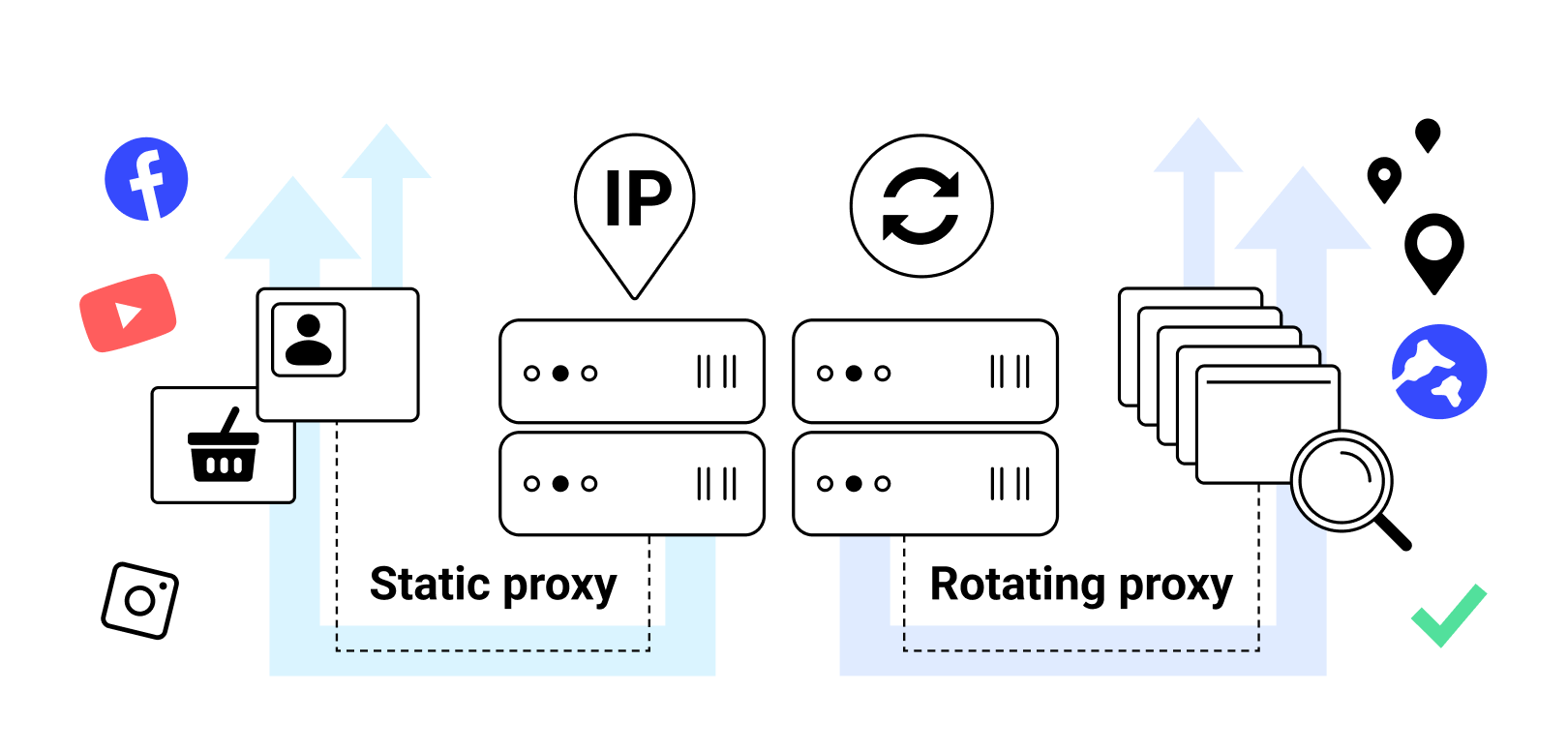
Static ISP Proxies for Long-Running Account Sessions
Static ISP proxies are well suited to workflows where a stable endpoint matters. A single account can keep working through the same IP for an extended period without constantly changing its network route. This is useful when the main priorities are predictable connectivity and straightforward account management. However, there is no basis for claiming that a static IP by itself protects an account from Telegram restrictions. Its advantage is different: it reduces unexpected changes in the network connection.
Residential Proxies with Sticky Sessions
A sticky session sits between a permanent IP and constant rotation. The IP remains the same for a defined period, allowing a task to run through one endpoint; the next session can then receive a different address. For automation, this can be a useful compromise. You do not need to bind one IP forever, but you also do not have to change it during every operation. This is a practical option for tasks that need an uninterrupted connection. The maximum sticky-session duration depends on the specific product and plan.
Rotating Residential Proxies
Rotation makes sense when changing the IP is part of the workflow itself—for example, when you are running a large number of relatively independent requests or tasks that do not require a persistent network identity. For a long-running authenticated session, constantly changing the IP does not provide an automatic advantage. The core principle is simple: define the workflow first, then choose the proxy type.
When You Should Actually Change a Proxy
There is no confirmed Telegram rule stating that an IP must be changed after a certain number of messages or actions.
A proxy should be changed for technical reasons. If an endpoint stops responding, the connection drops regularly, or response times become too high, the proxy should be checked and replaced if necessary. This matters even more in automation. A person can notice that the connection has dropped and reconnect manually. Software may continue waiting for a timeout, retrying requests, or keeping a worker occupied. Telegram Soft Expert lets you configure a timeout and automatically switch to another proxy when a connection error occurs. As a result, one failed endpoint does not necessarily have to stop the entire task. At this point, a proxy is no longer just an item in a list of IPs. It becomes part of the workflow.
How Telegram Expert Manages Proxies
When you are working with dozens or hundreds of accounts, manually monitoring every endpoint quickly becomes impractical. Telegram Soft Expert lets you manage accounts centrally and assign proxies at the account or settings level. The software supports HTTP and SOCKS5 IPv4 proxies.
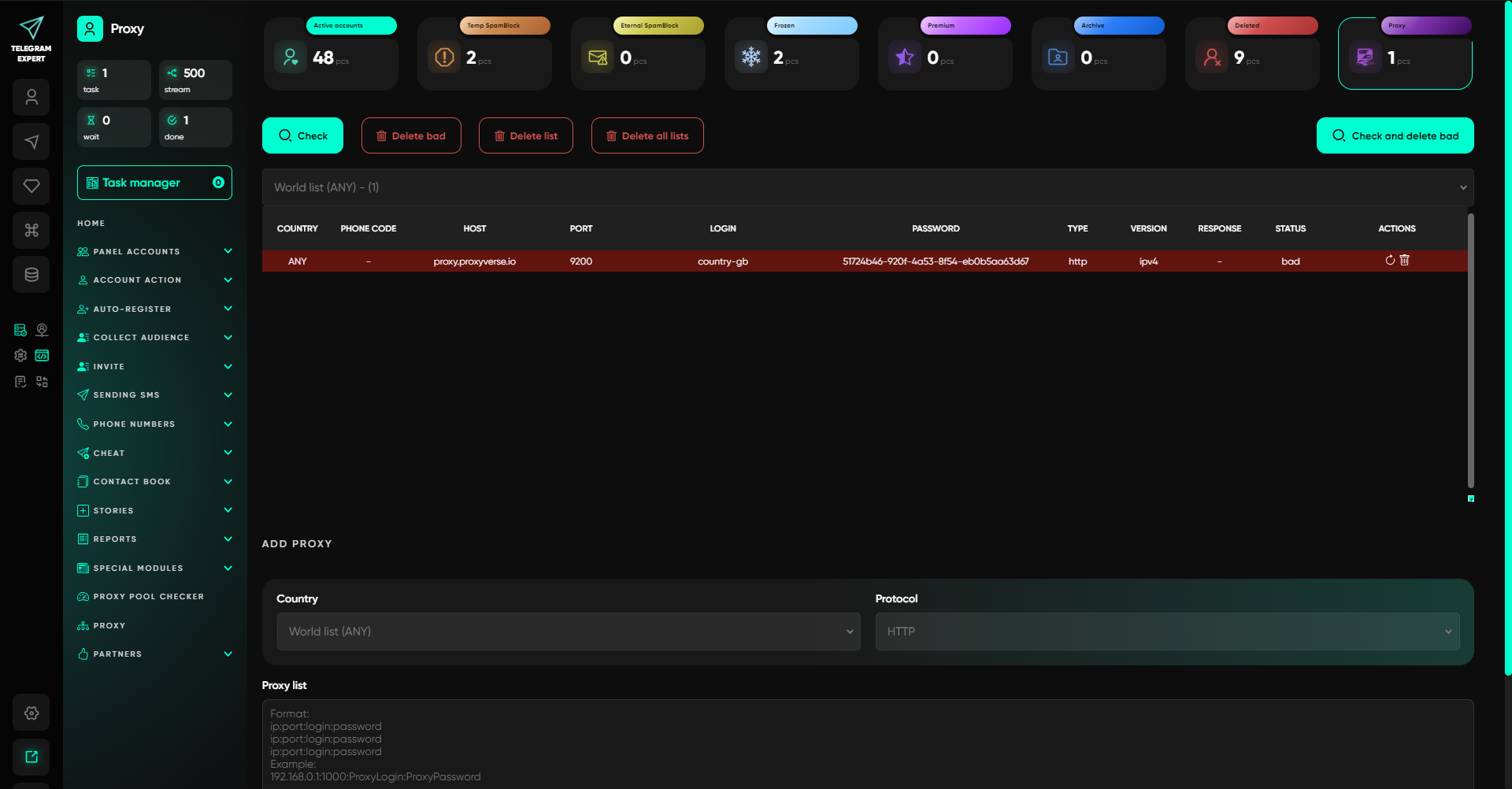
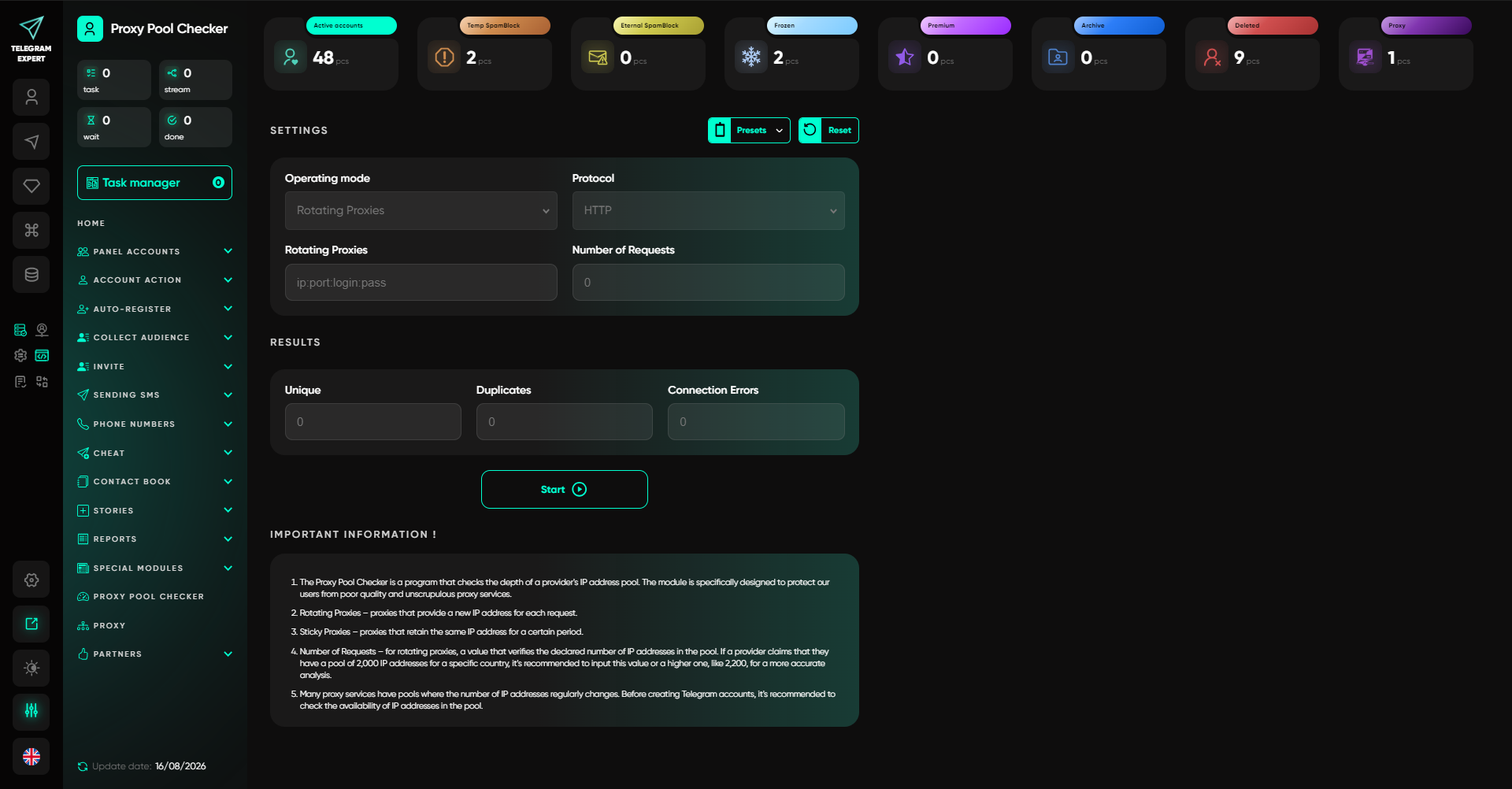
A dedicated Proxy Pool Checker lets you validate a pool before launching tasks. It shows availability and response times and also helps identify IP-address overlaps within the pool. It is useful to do this before starting the automation. First, load the proxy pool. Then filter out problematic endpoints. Once the check is complete, assign the remaining addresses to accounts and workflows. This approach is simpler than starting a task with the entire pool and trying to diagnose failures while it is already running.
Why Proxy Pool Size Does Not Guarantee Quality
A large list of IP addresses tells you very little, by itself, about whether those proxies are suitable for automation. At a minimum, you should consider connection availability, response time, endpoint stability, geolocation accuracy, and sticky-session duration. One stable IP can be more useful than dozens of addresses that regularly drop offline or change at the wrong moment.
So when choosing proxies for Telegram Expert, do not look only at the number of available addresses. Check real response times and connection stability, and for workflows that use authenticated accounts, take session duration into account.
How to Connect SwiftProxy to Telegram Soft Expert
Telegram Expert works with IPv4 proxies and supports HTTP and SOCKS5.
If you use SwiftProxy, first get the connection details from your account dashboard: host, port, username, and password. For SOCKS5, you can use generated credentials. Next, select the required proxy type in Telegram Expert and add the details in this format:
ip:port:login:password
After importing the proxies, run a pool check. Telegram Expert will show the status and response time for each endpoint.
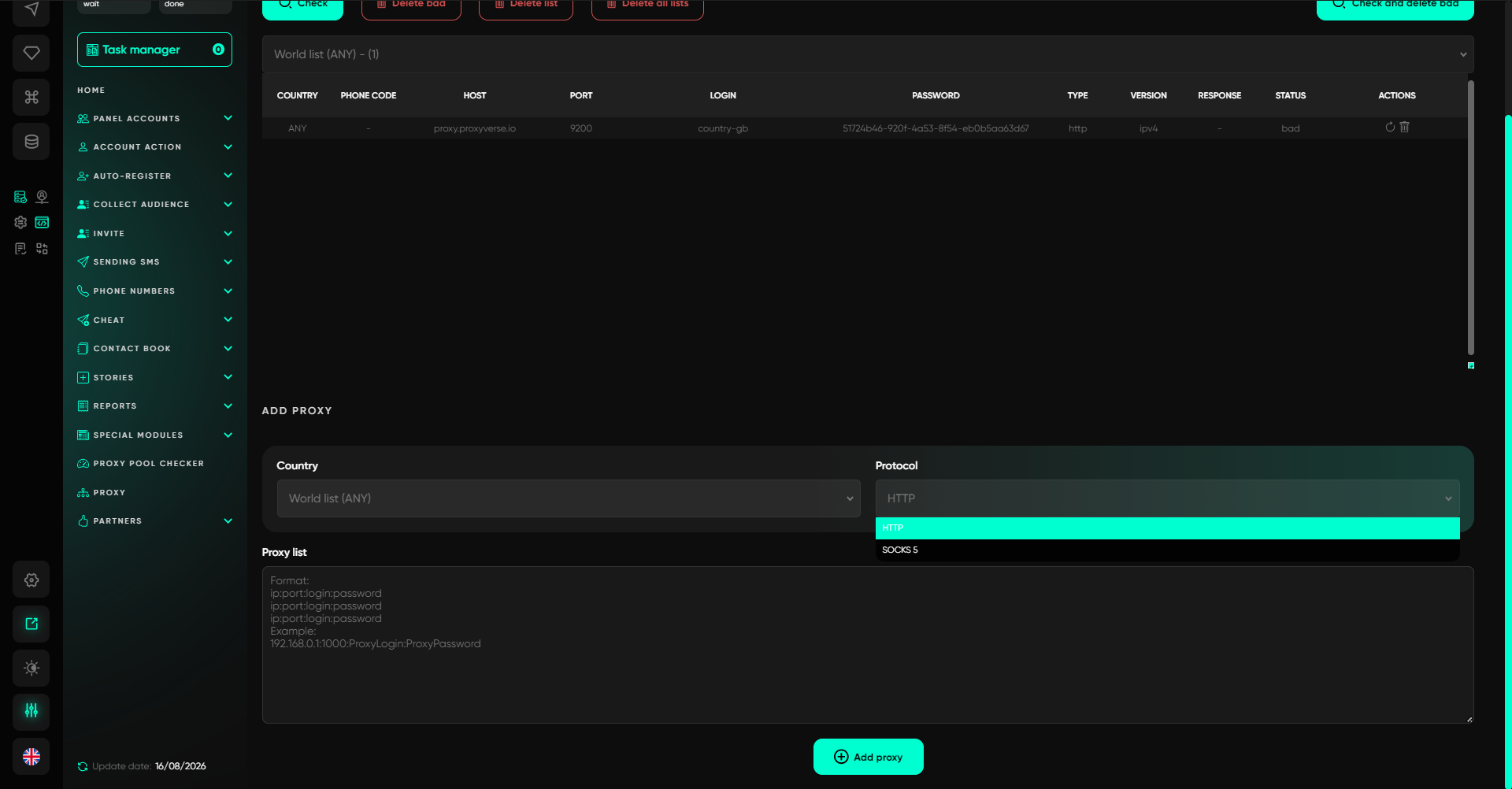
Only after the check should you assign proxies to working accounts. If a proxy fails the check, that does not always mean it is permanently unusable. The result can be affected by the timeout setting, geolocation, and connection quality. A problematic endpoint is worth testing again with appropriate settings.
How to Choose a SwiftProxy Proxy for Your Use Case
If an account needs the most stable connection possible, Static ISP is a logical option to consider.
If you need a residential IP but do not want it to change while a task is running, a sticky session is a good fit.
If IP changes are part of the workflow itself, you can use rotating residential proxies.
The choice should depend on the workflow, not simply on the proxy type’s name. For example, a fixed endpoint serves one purpose for an authenticated account that needs to work for a long time. For an operation that does not depend on keeping the same network session, controlled rotation may be more convenient.
SwiftProxy handles the network layer. Telegram Soft Expert handles proxy management inside Telegram automation: importing, checking, assigning proxies, and processing connection errors.
What to Check Before Starting Automation
Before launching a task, run through a short checklist.
- Account: make sure there are no active restrictions.
- Phone number: check for registration issues or restrictions tied to the number.
- Proxy: confirm that the endpoint is reachable and supports IPv4 and the required protocol.
- Network strategy: decide whether you need a fixed IP, a sticky session, or rotation.
- Telegram Expert: make sure timeout, retry, and proxy assignment settings are configured.
- Workflow: make sure the activity being performed complies with Telegram’s rules.
The last point should not be ignored. A proxy does not make unwanted messages acceptable and does not override platform restrictions.
What to Do When Different Problems Occur
If Telegram stays stuck on “Connecting” for a long time, first check proxy availability, latency, and the protocol.
If Proxy Checker reports a bad endpoint, test it again while taking timeout settings and geolocation into account.
If the session regularly loses its connection, look at endpoint stability and whether you are using a sticky or static model.
If the account cannot message people it does not know, do not start by changing the proxy. First, check the restriction through @SpamBot.
If a new account is restricted immediately, check the phone number and where it came from.
If the account is frozen, a proxy will not solve the problem. You need to review the account status and the available appeal options.
If the automation periodically gets stuck, check several factors at once: the proxy, timeout, retry settings, and the workflow itself.
Conclusion
With a small number of accounts, network settings can be managed manually. At scale, the challenge changes: you need to know which account is using which endpoint, which proxies are working, which ones need to be replaced, and what will happen if a connection is lost. The software combines account management, action automation, proxy checking, and network-error handling in one system. In addition to proxy tools, Telegram Expert includes modules for account registration, audience collection, inviting users, messaging campaigns, auto-posting, analytics, and other tasks involved in managing Telegram at scale. This is why combining the software with a proxy service solves two different problems. SwiftProxy provides the network infrastructure, including the required IP type and connection method. Telegram Expert lets you use that infrastructure within your workflows and monitor its status.
關於作者
 頂級住宅代理解決方案
 {{item.title}}

 24
24